
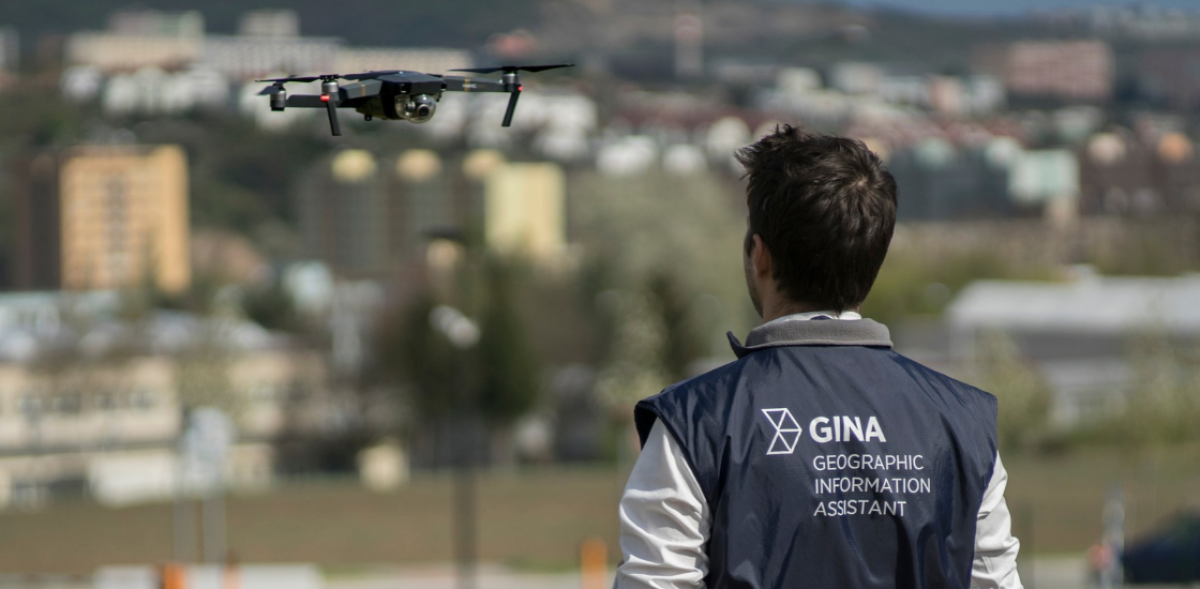
Drone docks are moving from pilot projects into everyday operations for police, fire, security and industrial sites. When DJI presented its new DJI Dock 4 to partners across Europe, the Middle East and Africa, it showed the dispatch workflow in GINA Smart CAD.
In this article, we’ll walk through that scenario step by step and look at what it changes for the people running the response. If you’d like the bigger picture first, read why a common operating picture matters in emergency response.
Table of Contents
What Drone Docks Bring to Emergency Response
A drone dock is a weatherproof station that stores a drone, charges it, and launches and lands it automatically. Because the drone is always ready, nobody has to drive to the scene, unpack equipment and fly by hand. The first aerial view of an incident can arrive within minutes, sometimes before the first patrol car.
DJI Dock 4, launched in October 2026, is the latest example. It’s built for flights beyond the operator’s line of sight, carries a parachute for safety and is designed to run around the clock in harsh weather. It works with DJI’s Matrice 5TD drone. Just as important for control rooms, DJI’s FlightHub 2 platform can receive flight requests from CAD and other systems, and send live video and mission data back to them.
The Scenario, from Street Alarm to Evidence Pack
Here’s what that looks like in practice, from DJI’s Dock 4 demo. It shows a real workflow from start to finish, with a security team, a drone dock and Smart CAD as the dispatch system.
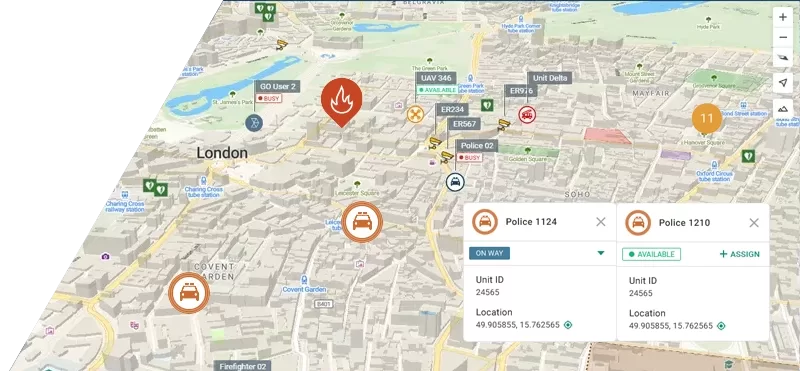
1. A person presses an emergency button on the street. The alarm arrives in Smart CAD, and the security operator sees it on the map with its exact location.
2. The operator categorises the incident and tags it. Smart CAD creates an auto-dispatched mission based on the incident type.
3. The mission assigns mixed resources: a patrol car, the patrol team and a DJI Dock drone. The drone is a unit in the response plan, not a separate request.
4. The flight request appears in FlightHub 2. The dock operator clicks assign, the drone takes off and flies to the incident coordinates on its own.
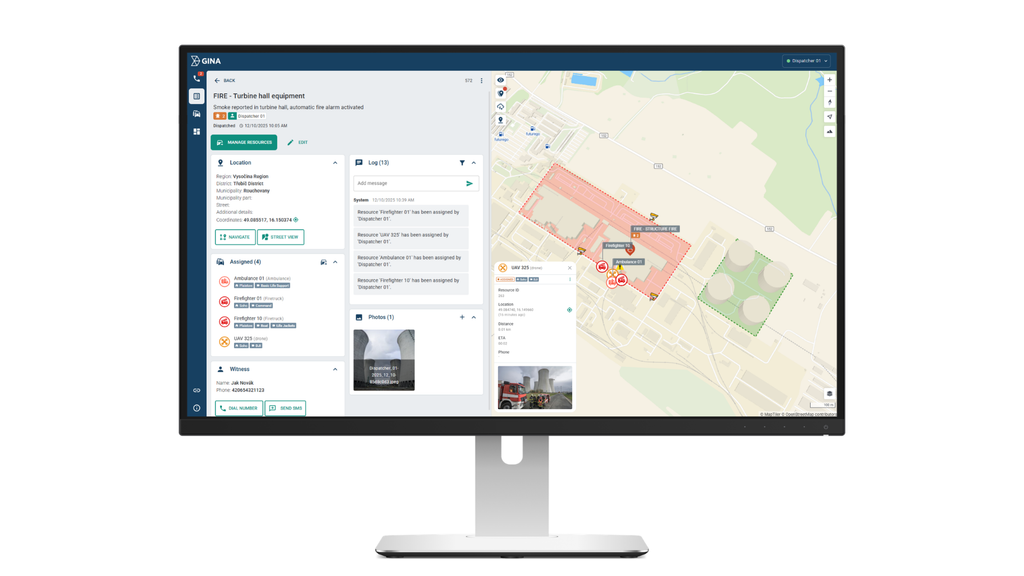
5. The drone’s icon moves across the Smart CAD map, and its status updates from launched to en route, on scene and returning. The dispatcher sees this without asking anyone over the radio.
6. On scene, the drone turns its camera to the alarm location and finds the person who pressed the button. When that person gets into a car, the operator follows the car from the air. Snapshots go into the incident during the flight.
7. When the mission ends, an evidence pack with the incident ID, flight log, photos and video syncs to the customer’s system automatically. Nobody downloads files by hand.
Throughout the flight, the operator only confirms. They don’t plan routes or fly the aircraft, but they can pause the mission and take manual control at any moment.
What Changes for Dispatchers, Commanders and Field Teams
Dispatchers
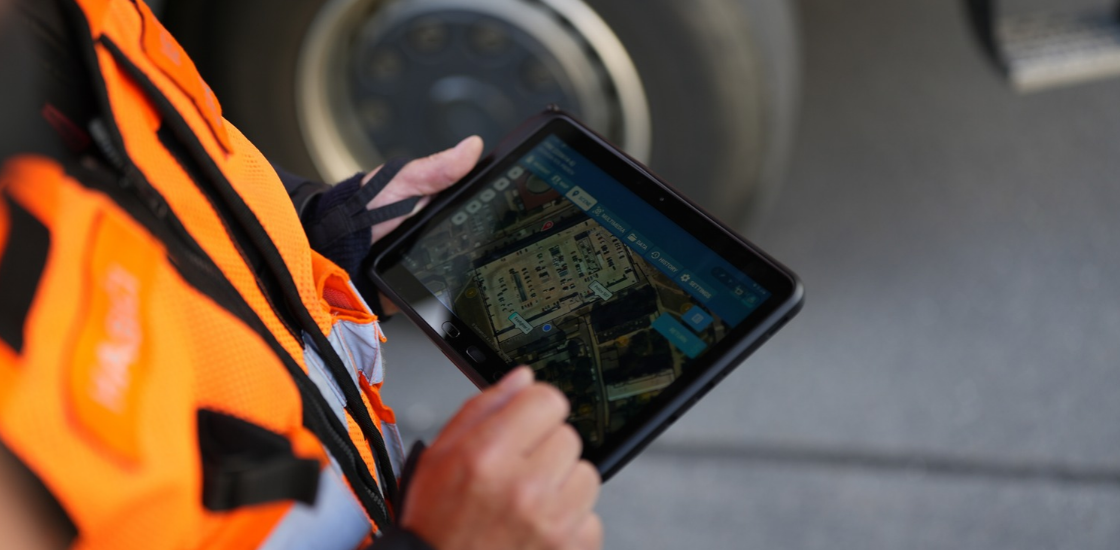
The drone becomes one more unit on the incident. There’s no second application to switch to and no address to retype. The dispatcher sees where the drone is and what it sees in the same place they manage the patrol car.
Commanders and supervisors
Commanders get a live aerial view tied to a specific incident, not a stream without context. They can decide whether ground units are still needed, redirect them, or stand them down. That last option matters: if the drone shows a false alarm or a situation that’s already resolved, the patrol stays free for the next call.
Field teams
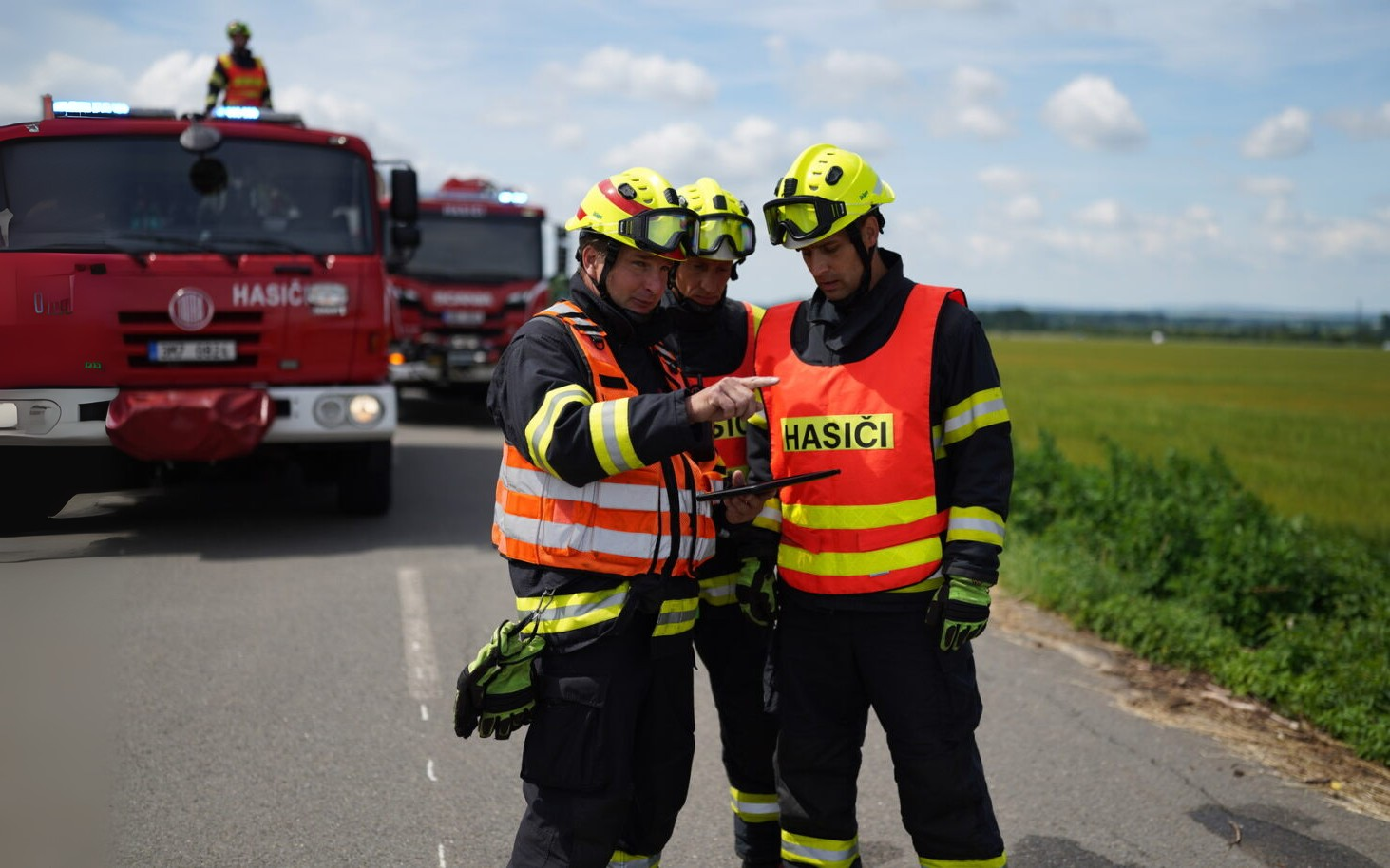
Patrol crews drive toward a situation that’s already been observed. Before they arrive, they know whether the person is still there, which way a vehicle went and what the area looks like.
Drone Programmes With and Without CAD Integration
| Step | Standalone drone programme | Drone connected to Smart CAD |
|---|---|---|
| Requesting a flight | The dispatcher calls or messages the drone operator | The flight request is created from the incident, automatically or in a few clicks |
| Incident location | Retyped by hand into the drone software | Sent from CAD with exact coordinates |
| Drone status | Reported verbally over radio or phone | Shown live on the CAD map, from launch to return |
| Live video | Watched on a separate screen | Available in the incident, next to the ground units |
| Ground and air units | Coordinated separately | Assigned together in one mission |
| Evidence | Downloaded and filed by hand after the flight | Synced to the incident automatically |
| Audit trail | Split across systems | One incident record with the timeline, flight log and media |
What Smart CAD Integration Delivers
Connecting drones to Smart CAD gives the control room more than a new data source. It changes how quickly and confidently teams act.
- A faster first look: the drone launches from the incident itself, without phone calls or retyped addresses.
- One operational picture: air and ground units appear on one map and in one incident, so everyone works from the same view.
- Better decisions under pressure: commanders see the scene before committing resources, not after.
- A complete record: video, snapshots and flight logs stay with the incident they belong to, ready for review or as evidence.
- Freedom to choose your drone vendor: Smart CAD works with DJI and other leading drone makers through the GINA Drone solution.
Drones are one part of a wider integration picture. Smart CAD also brings in data from GPS trackers, video systems, alarms and mobile apps, so every source that matters during an incident ends up in one place.
Better Decisions Start with Dispatch
New docks like DJI Dock 4 make drones a practical, everyday part of emergency response, ready to launch at any moment and able to reach a scene quickly. Smart CAD helps teams get the most out of that capability. It puts the drone’s position, video and evidence in the same incident as the rest of the response. Together, they give dispatchers, commanders and field teams a clearer picture, sooner.
Want to see how this works in your own control room? Talk to our team.